JavaScript Modules: Import and Export
If you're learning JavaScript, you’ll quickly reach a point where your code becomes too big and messy. This is where modules come in.
Let’s understand it step by step in a very simple way.
Why Modules Are Needed
Imagine you're writing a JavaScript app — maybe a to-do list, a weather dashboard, or a simple game. You start with one file: script.js. It works great at first.
But as your app grows, that one file swells to 500 lines… then 1,000… then 3,000. You scroll frantically trying to find a function you wrote two weeks ago. A teammate edits the same file and breaks something you didn't touch. Sound familiar?
⚠️The "One Giant File" Problem
When all your code lives in one file, it becomes hard to read, hard to debug, and nearly impossible to share safely with teammates.
This is the problem modules solve. A module is simply a separate JavaScript file that holds a focused, reusable piece of your app — one file for user authentication, another for date formatting, another for API calls.
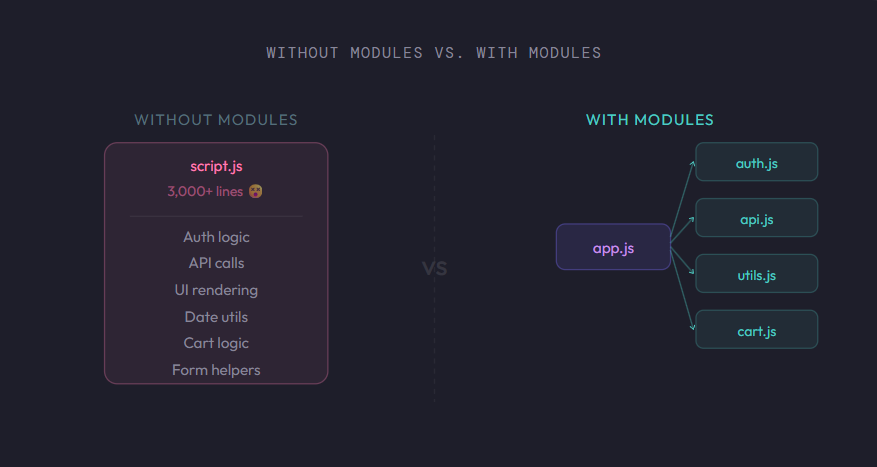
With modules, each file has one clear job. Your app.js just pulls in what it needs. Clean, focused, understandable.
Exporting Functions or Values
Before another file can use your code, you need to export it — think of it like putting something in a store window so others can see and pick it up.
There are two kinds of exports, and we'll go deeper on them in Section 4. For now, let's see both in action.
Named exports — exporting several things at once
ex: utils.js
// Named exports — you can have many in one file

export function add(a, b) {
  return a + b;
}

export function subtract(a, b) {
  return a - b;
}

export const PI = 3.14159;
Default export — the "main thing" from a file
ex: greet.js
// Default export — only one per file

export default function greet(name) {
  return `Hello, ${name}!`;
}
💡Mental model
Think ofexportas putting a label on a box so someone else can grab it. Without the label, the contents stay private inside that file.
Importing Modules
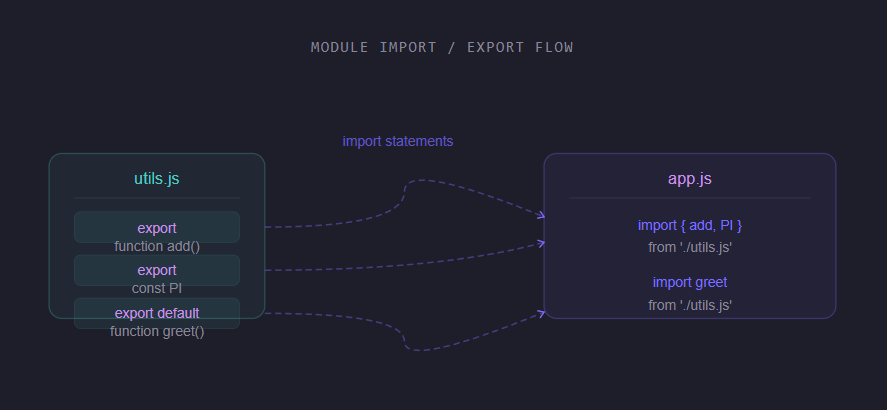
Once something is exported, any other file can import it using the import keyword. You tell JavaScript what to bring in and from where.
Importing named exports
ex: app.js
// Curly braces {} for named imports
import { add, subtract, PI } from './utils.js';

console.log(add(5, 3));       // 8
console.log(subtract(10, 4)); // 6
console.log(PI);              // 3.14159
Importing a default export
// No curly braces for default imports — you pick the name
import greet from './greet.js';

console.log(greet('Maya')); // Hello, Maya!
Importing both at once
// You can import default and named from the same file
import greet, { add, PI } from './math.js';
📂File paths matter
The
./before the filename means "look in the same folder". Without it, JavaScript looks for a built-in or installed package, not your file.
Default vs. Named Exports
This is one of the most confusing parts for beginners, so let's break it down side by side. The key difference comes down to how many things you're exporting and whether the name is fixed or flexible.
| Feature | Named Exports | Default Export |
|---|---|---|
| Number per file | Multiple per file | Only one per file |
| Import naming | Name is fixed on import | You can choose any name |
| Syntax | Uses curly braces { } |
No curly braces |
| Best use case | Good for utility files | Good for main class/function |
| Name matching | Must match exact name | Works with any alias |
Named exports in action
// math.js — named exports
export function square(x) { return x * x; }
export function cube(x)   { return x * x * x; }

// app.js — must use exact names
import { square, cube } from './math.js';

// ✅ You can also rename with 'as'
import { square as sq } from './math.js';
Default export in action
// UserCard.js — one default export
export default function UserCard({ name, role }) {
  return `<div>\({name} - \){role}</div>`;
}

// app.js — any name works, no curly braces
import UserCard       from './UserCard.js'; // ✅
import Card           from './UserCard.js'; // ✅ also works
import MyFancyWidget  from './UserCard.js'; // ✅ still works
🚫Common mistake
Using curly braces{ }when importing a default export will result inundefined. The curly braces are only for named exports.import { UserCard } from './UserCard.js' // ❌ Wrong!
Quick cheat sheet
// ─── EXPORTING ───────────────────────────────
export const name = 'Alice';          // named
export function sayHi() {}           // named
export default function main() {}    // default

// ─── IMPORTING ───────────────────────────────
import { name, sayHi } from './file.js';  // named
import main             from './file.js';  // default
import main, { name }  from './file.js';  // both
import * as Utils       from './file.js';  // all named
Benefits of Modular Code
By now you've seen the syntax — but why does this actually matter in real projects? Here's what modular code gives you:
Separation of concerns: Each file focuses on one job. Your auth code stays in auth.js, API calls in api.js
Reusability: Write a formatDate() function once and import it anywhere in your app — no copy-pasting.
Easier debugging: When something breaks, you know exactly which file to look in. No hunting through 2,000 lines.
Team-friendly: Multiple people can work on different modules without constantly conflicting in the same file.
Testable: Small, exported functions are easy to test in isolation. Big spaghetti files are not.
Better tooling: Bundlers like Vite and webpack rely on modules to tree-shake unused code from your final build.
A real-world example
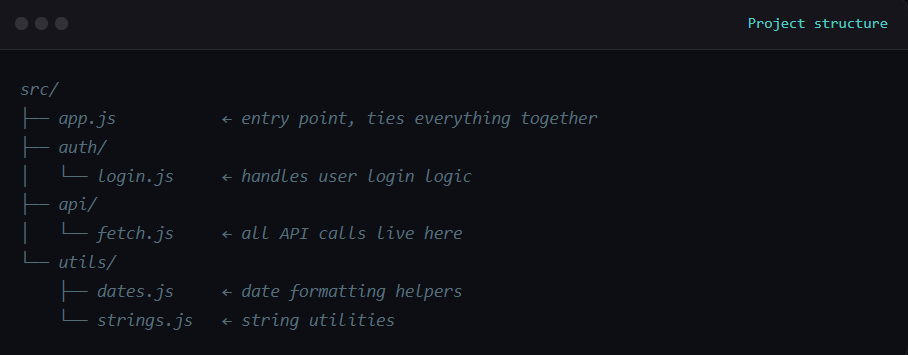
Here's how a small project might be structured with modules — notice how each file has a clear, single purpose:
app.js — pulling it all together
import { login }        from './auth/login.js';
import { fetchUser }    from './api/fetch.js';
import { formatDate }   from './utils/dates.js';
import { capitalize }   from './utils/strings.js';

// Clean, readable, and organised 🎉
async function init() {
  const user = await fetchUser(42);
  console.log(capitalize(user.name));
  console.log(formatDate(user.joinedAt));
}
🚀Where to go from here
Once you're comfortable with modules, exploredynamic imports(import()) for lazy loading, and look at how popular frameworks like React and Vue are built entirely around modules.
Quick Recap
Modules split your code across multiple focused files — no more giant spaghetti scripts.
Use
exportin front of anything you want to share: functions, constants, classes.Use
import { thing } from './file.js'to bring named exports into another file.Named exports use curly braces and have fixed names. Default exports skip the braces and you pick any name.
Modular code is easier to read, reuse, debug, test, and collaborate on.